
Phantom Recorder for Snapchat
Snapchat story and chat media saver
A public story, spotlight posts and highlights need nothing but the Snapchat name. For a chat, the Snap button opens Snapchat in a window of its own and fetches the media saved in it.
What you can save
- The public story that is running right now
- Spotlight posts
- Saved highlights
- The saved media of one chat
- Single snaps, as you open them
Good to know
- The Snapchat window uses a browser profile of its own. Your normal browser stays untouched, and you sign in there only once.
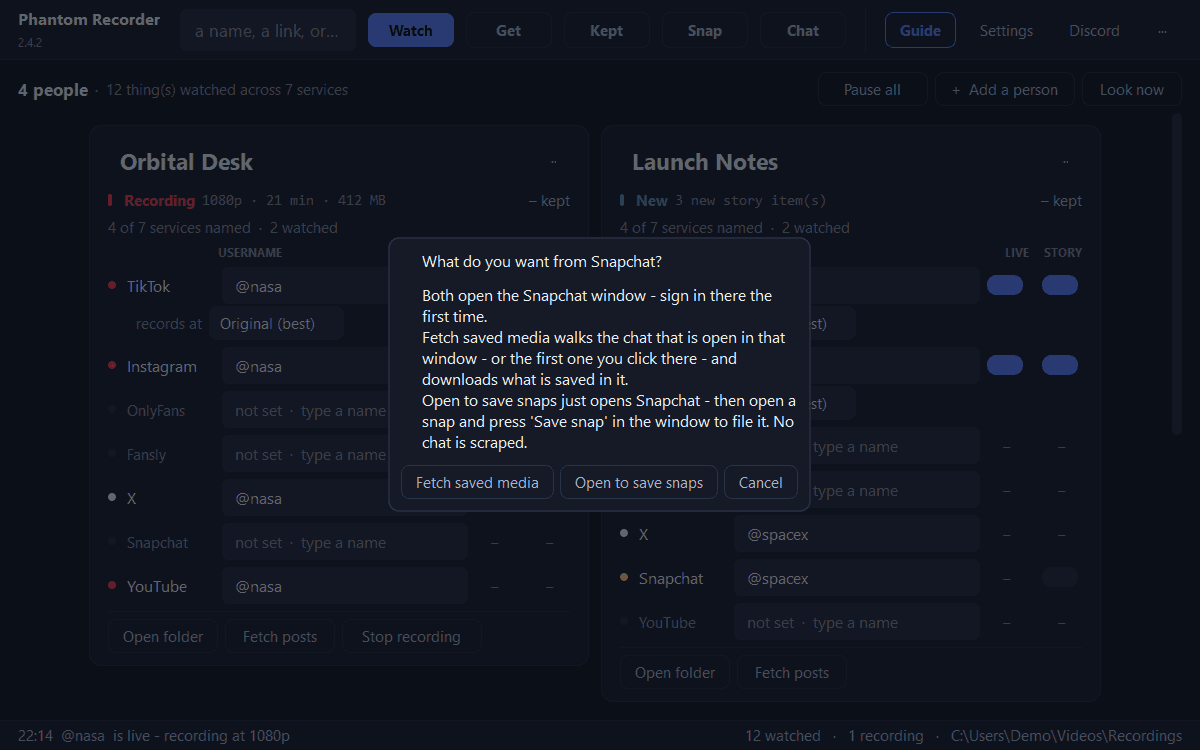
- To save single snaps, pick Open to save snaps, open a snap and press Save snap. No chat is read — only what you open and save.
- Snaps that say “open in the mobile app” never load in a browser, so there is nothing to save for those.
- Spotlight posts and highlights are not watched automatically: they do not expire, so there is nothing to catch in time.
- A long chat takes a few minutes to go through.
How it works
- 1
Public profile: add the name
Type the Snapchat name on the person's card. No sign-in is needed for a public profile.
- 2
Fetch story, spotlight or highlights
In Get, choose Stories for the story running now, Posts for spotlight posts or Highlights. Press the Snapchat chip, tick the tiles and press Download selected.
- 3
Let it watch the story
With STORY switched on, the public story is checked every 30 to 90 minutes and saved by itself.
- 4
Chat: use the Snap button
Press Snap in the top bar and pick Fetch saved media. Sign in inside the Snapchat window the first time, open the chat you want, then press Snap → Fetch saved media again. What is saved in that chat appears as tiles in Get.
Every button explained: the Snapchat section of the documentation →
In the program
Questions
Do I need to sign in to save a public Snapchat story?
No. The public story, spotlight posts and highlights only need the Snapchat name on the person's card.
How do I save the media from a Snapchat chat?
Press Snap in the top bar and pick Fetch saved media. Sign in inside the Snapchat window the first time, open the chat, and press Snap → Fetch saved media again. The media saved in that chat then appears in Get, ready to download.
Can I save a single snap?
Yes. Press Snap, pick Open to save snaps, open the snap in the Snapchat window and press Save snap there.
Does it touch my normal browser?
No. The Snapchat window uses a separate browser profile, so being signed in to Snapchat in your normal browser neither helps nor is affected.
Phantom Recorder 2.4.8
Free for Windows. Unzip and start — nothing to install.