

Getting started
- 1Download Phantom-Recorder-<version>.zip from our Discord (the link is on the tool page).
- 2Unzip it anywhere, for example into Documents\Phantom Recorder, and start the program. There's no installer and no Python to set up — ffmpeg is bundled.
- 3Open Settings and choose Where files go on the General tab. Everything you record or fetch is saved there.
- 4In Watch, click + Add a person and type their usernames on the card — one field per service.
- 5Turn on LIVE, STORY and/or POSTS for the accounts you want watched. Phantom Recorder now checks them in the background.
Your sign-ins to the platforms stay on your PC and are never uploaded, and everything you record or download is saved in your own folder on your PC. The app's own data is in %APPDATA%, with rotating backups in your Documents folder — see Updates & backups.
The main window
The window has four parts that never change: the bar across the top, the sidebar on the left, the section you're in, and the status bar at the bottom.
The top bar
- Search box
- “a name, a link, or what you are looking for”. Type a person's name to jump to their card, or paste a profile or post link. Ctrl+K puts the cursor there.
- WatchGetKept
- The three sections. The highlighted one is where you are.
- Guide
- Opens this documentation in your browser.
- Settings
- Opens the settings dialog.
- Discord
- Opens our Discord server — for new versions, help and feedback.
The sidebar
- Name and version
- Top left, e.g. Recorder · 2.6.2. With VIP a chip under it reads VIP · 23 days left.
- MESSENGERS
- Snapchat and Telegram, each in a window of its own where you sign in — see Snapchat and Telegram.
- COMMUNITY
- Chat opens the chat between everyone who uses the program. A badge on it shows unread messages.
- Sign-ins
- One entry per platform that needs a sign-in, with its state. Pick one to sign in or to see who is signed in.
- Activity log
- Everything the program did, newest last.
- Updates
- Looks for a new version right now — details.
Around the window
- System tray
- Closing or minimising the window puts Phantom Recorder in the tray, where watching keeps running. Quit in the tray menu stops it completely; Lock now locks it if you use the app lock.
- Status bar
- Left: the latest event with its time, e.g. 22:14 @nasa is live – recording at 1080p. Right: how many accounts are watched, how many recordings are running, and the folder files go to.
- Polls
- Now and then a short poll appears when the program starts. Pick an answer and press Send answer; it doesn't ask again after that.
Watch
Watch is the home screen. Every person you follow has one card, and each card holds their usernames on all supported services: TikTok, Instagram, OnlyFans, Fansly, X, Snapchat, YouTube.
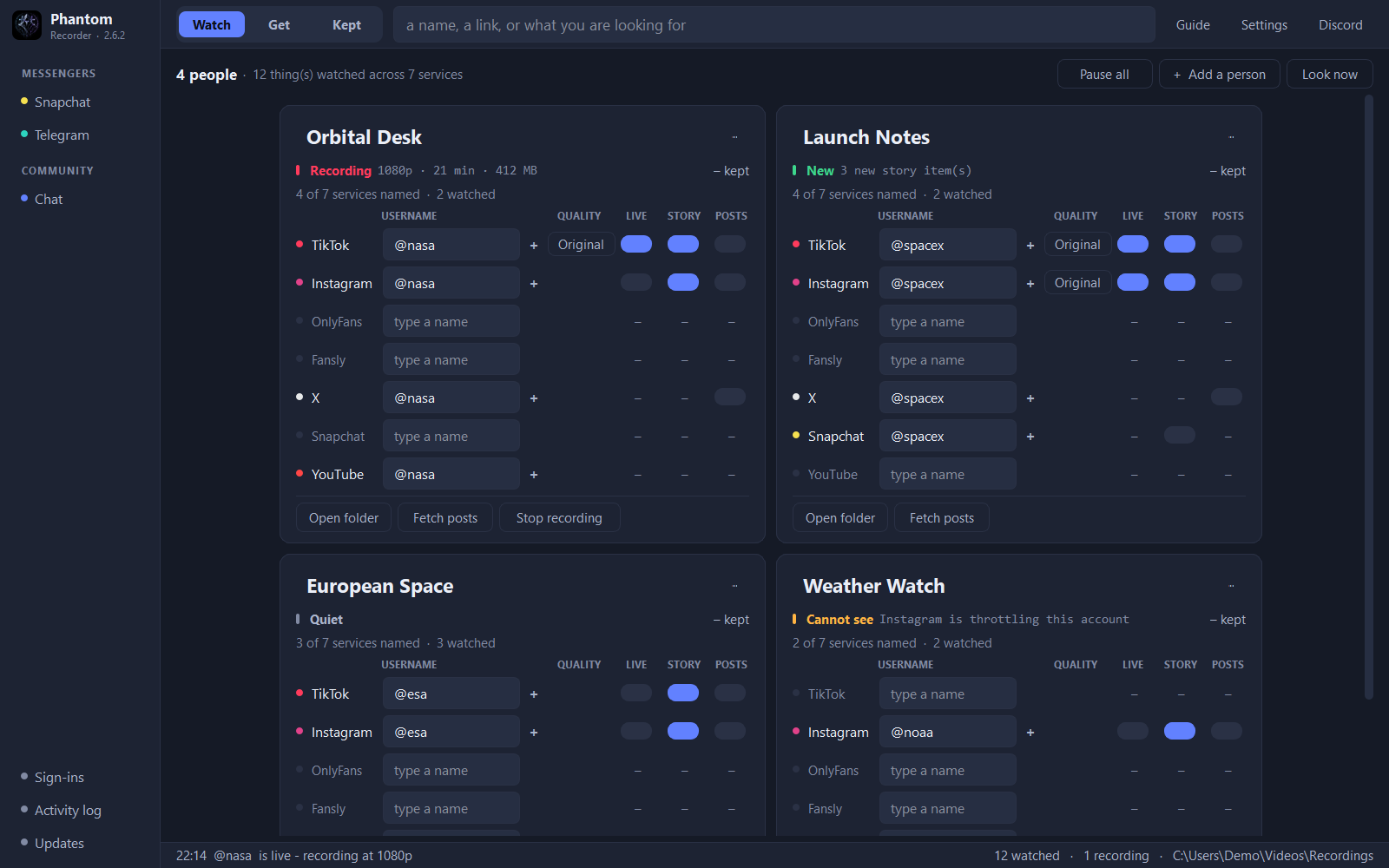
- 4 people · 12 thing(s) watched across 7 services
- How many cards you have and how many account/feature switches are turned on in total.
- Pause all
- Pauses story watching for everyone at once, without changing the switches on any card. Lives are still recorded — switch LIVE off on the card to stop that.
- + Add a person
- Creates a new, empty card. Give it a name, then fill in the usernames you know.
- Look now
- Checks every watched account immediately instead of waiting for the next automatic check.
Person cards
A card is everything Phantom Recorder knows about one person. From top to bottom:
- Name
- The person's display name, also used in Kept. The ··· button next to it opens the card's menu: Merge into moves this person, with all their accounts, onto another card; Remove this person deletes the card.
- Status line
- What's happening right now — see all status messages. While recording it shows resolution, duration and size, e.g. 1080p · 21 min · 412 MB.
- – kept
- How many files you have saved for this person (a dash means none yet).
- 4 of 7 services named · 2 watched
- How many services have a username filled in, and how many of those have a switch on.
- Service row
- The dot is in the service's colour when a username is set and grey when it isn't. Empty fields read type a name; leave them empty if the person doesn't use that service.
- +×
- + beside a username adds another account of that service — a backup or second profile — as a row of its own, up to five more. × takes one off again. Each has its own switches and quality.
- QUALITY · Original
- Appears beside an account with LIVE on. Click it to pick the recording quality; Original (best) keeps the highest quality the stream offers.
- LIVE switch
- Watch this account for livestreams and record them automatically when one starts.
- STORY switch
- Save new story items from this account as they appear.
- POSTS switch
- Download new posts by themselves — for TikTok, Instagram, X, OnlyFans and Fansly, checked about every 6 hours. They go into the same Posts folder as Get, and nothing is downloaded twice.
- – (dash)
- That switch doesn't apply to this service, or no username is set yet.
At the bottom of each card:
- Open folder
- Opens this person's folder in Explorer.
- Fetch posts
- Jumps to Get with this person selected.
- Stop recording
- Only visible while a live is being recorded. Ends the recording and finalises the file right away.
Get
Get fetches what's available from a person's accounts — posts, stories, highlights, chat media and the profile picture — and shows it in one grid, whatever service it came from.
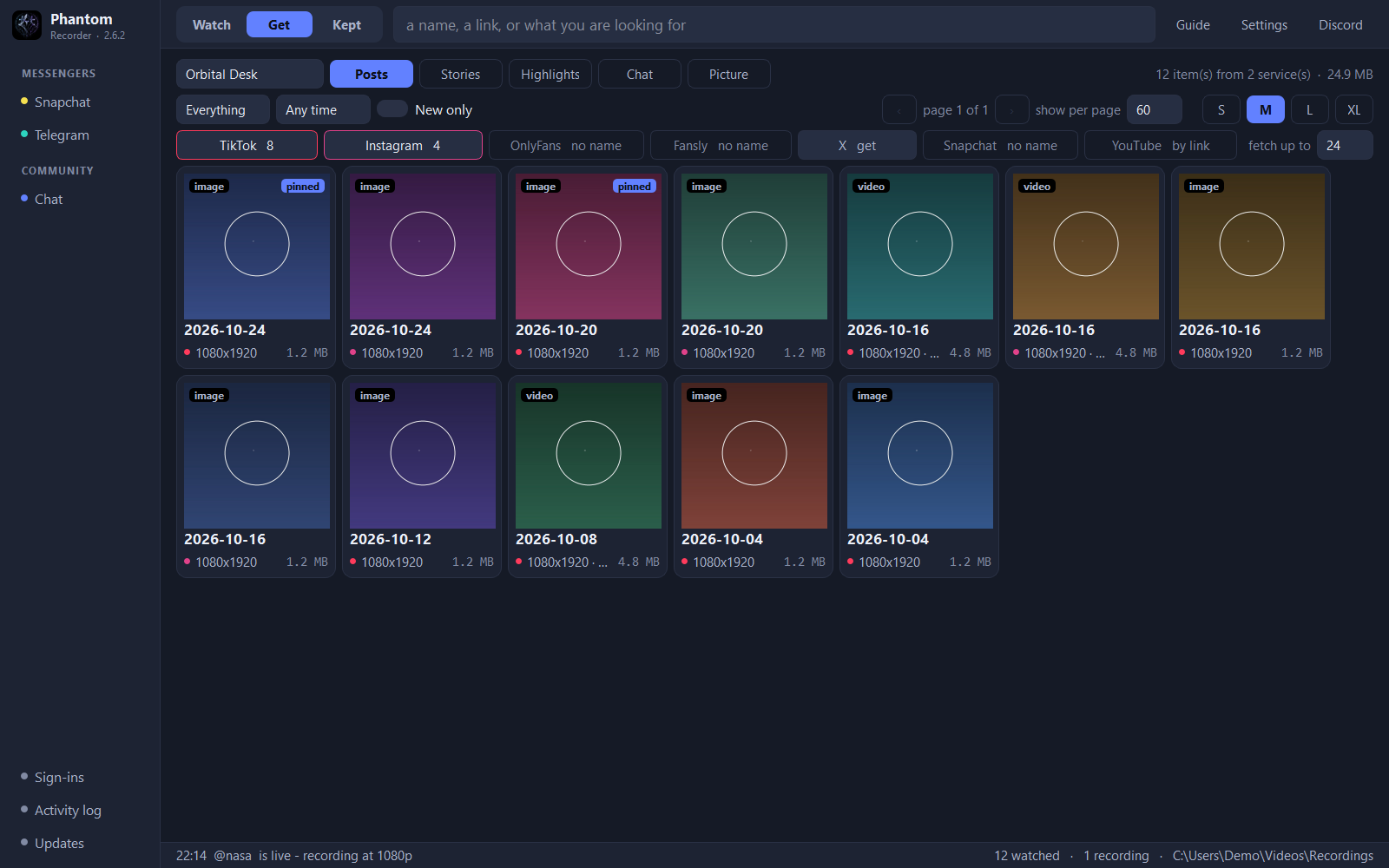
First row: who and what
- Person
- The card you're fetching for. Pick another person from the list.
- PostsStoriesHighlightsChatPicture
- What to fetch. Chat is your own inbox on OnlyFans and Fansly; Picture is the full-size profile picture. Not every service has every kind — see Platforms.
- 12 item(s) from 2 service(s) · 24.9 MB
- What the current view contains and its total size.
Second row: filter and layout
- Everything
- Filter by media type: everything, only images, or only videos.
- Any time
- Limit results to a time range.
- New only
- Hide items you've already saved, so you only see what's new since last time.
- page 1 of 1 · show per page
- Page through large results and set how many tiles a page shows.
- SMLXL
- Tile size.
Third row: services
Each service has a chip. Its label tells you its state:
- TikTok 8
- Fetched — 8 items came from this service. Click the chip to show or hide them.
- X get
- A username is set but nothing has been fetched yet. Click to fetch.
- OnlyFans no name
- No username on the card for this service.
- YouTube by link
- YouTube has no profile walk — paste a link into the search box instead (how). Facebook (how) and Twitch (how) work the same way.
- Fansly n/a
- This service doesn't have the kind you picked — e.g. Fansly has no stories. See Platforms for what each one offers.
- fetch up to 24
- The maximum number of items to request per service in one fetch. Raise it to go further back.
Tiles
Each tile shows the type (image or video), a pinned label for posts pinned to the profile, the date, the resolution and the file size. The coloured dot marks the service. Previews appear as soon as they arrive, so you can start browsing while a large fetch is still running.
Downloading
Nothing is downloaded until you say so. Click a tile to tick it, double-click it to open the media viewer — that is also where an item with several versions lets you pick one.
- Select all
- Ticks everything the current filters show.
- Download selected
- Saves the ticked items to their folder. The count in the button tells you how many.
- Retry failed
- Appears when something didn't come through — tries those items again.
- Clear
- Unticks everything.
- locked / DRM
- Can't be ticked: the service serves no file for it. On OnlyFans that means content you haven't subscribed to or bought.
Media viewer
- Title and size
- The item's name and resolution, top left.
- ‹ ›
- Previous and next item in the current list, bottom left and bottom right.
- 1 of 12
- Where you are in the list.
- 1080x1920
- The version picker: every rendition the service offers, named by its real size. The best one is chosen for you.
- ×
- Closes the viewer and returns to the grid.
Kept
Kept is your library: every file you've saved, newest first, grouped by day.
- everybody
- Show everyone's files, or pick one person.
- Service chips
- Show or hide files from TikTok, Instagram, OnlyFans, Fansly, X, Snapchat, YouTube. Each chip is outlined in its service colour.
- Search
- Search by person, service or file name.
- 10 file(s) · 107.9 KB
- Count and size of what the filters currently show.
- Refresh
- Re-reads your save folder — use it after moving or deleting files outside the app.
- Export CSV
- Saves the current list as a CSV file you can open in Excel or other tools.
- Remove missing
- Appears when files have gone from disk. Takes their entries out of the list; it never touches a file.
- Day headings
- e.g. TODAY 10 files · 107.9 KB — each day with its file count and size.
- Tiles
- The person's name, the service and type (e.g. TikTok post, Instagram story) and the time it was saved. A ▸ badge marks videos.
Tidying up
- Click a tile
- Ticks it. A bar appears at the bottom with the count and size, Clear selection and Delete selected, which sends the ticked files to the Recycle Bin after one question.
- Delete file (to Recycle Bin)
- Right-click: sends this file to the Recycle Bin, so a wrong click can still be undone there.
- Remove from the archive
- Right-click: takes the entry out of the list and leaves the file where it is.
- Fetch more from <person>
- Right-click: opens Get for that person.
Settings
Settings has five tabs. Changes apply when you click Save; Cancel drops them.
General
- Where files go · Choose …
- The folder all recordings and downloads are saved to. It's also shown in the status bar.
- A folder per account
- On: each account gets its own subfolder. Off: files for a person share one folder.
- Proxy
- Optional, as http://host:port or socks5://host:port. Everything the program asks the platforms goes through it — checks, recordings, downloads and the background browser windows. A proxy with a user name and password works for all but the browser windows. Leave it empty to connect directly.
- Tools
- Path to your own ffmpeg.exe. Leave it empty to use the bundled one — you only need this if you want a specific ffmpeg build.
Account
- Account …
- An optional account: a username and a password, no e-mail address. Signing in with it on a new PC brings back your lists, your settings and your chat name. It's also what lets you change your chat name.
Notifications
- Play a sound for
- A new private message · A new message in the group chat or a room · A download has been saved. Each sound has its own switch.
- Notify when something is saved
- Shows a Windows notification for each new file.
Check intervals
- One field per check
- How often TikTok, Instagram, Facebook and Twitch lives, the TikTok, Instagram and Snapchat stories and new posts are looked for. Checking more often finds things sooner — and is what gets an account throttled or signed out, so faster-than-recommended values are marked and Save asks once more.
- Recommended values
- Puts every field back to the value that has held up.
Program
- Start with Windows
- Starts Phantom Recorder when you sign in to Windows.
- Check for updates at startup
- Quietly checks for a new version when the app starts — details.
- App lock
- A PIN of 4 to 12 digits in front of the window. It's asked at start and when the window comes back from the tray. Lock by itself locks it after a while without use; Ctrl+L or Lock now in the tray menu locks at once. Recording and downloads go on behind it. It guards the window — the files in your folder are not encrypted.
Platforms
Every service works a little differently. Below: what you can get from each one, what it needs from you, and the exact steps to download it. Two routes run through most of them — Watch saves lives, new stories and new posts on its own, Get fetches on demand. A few things come in by link instead of by username: paste the link into the search box at the top, or press Ctrl+V anywhere in the window. Snapchat chats and Telegram open in windows of their own, from the sidebar.
TikTok
You can get: Live recordings, stories, posts (videos and photo posts) and the profile picture.
Record lives and catch stories and posts automatically
Put the username on the person's card, then switch on LIVE, STORY, POSTS or any mix. Lives are recorded from the moment the stream starts; the QUALITY button sets the quality, from Original (best) down to 360p, and Stop recording ends one early. Stories are checked every 30 to 90 minutes and saved as they appear; new posts about every 6 hours.
Download posts, stories or the profile picture
- 1Open Get and pick the person.
- 2Choose Posts, Stories or Picture.
- 3Press the TikTok chip. Nothing is fetched until you press it.
- 4Click the tiles you want (double-click opens the viewer), or use Select all.
- 5Press Download selected.
Posts and stories are read through a background browser window, so a Chromium browser (Chrome, Brave or Edge) has to be installed. Stories are gone 24 hours after they go up. Without a sign-in TikTok throttles requests and lives are found less reliably — add your session under Sign-ins → TikTok.
You can get: Posts and reels, stories, highlights, the profile picture and live broadcasts.
Instagram needs a sign-in: without a session it answers nothing useful. Add yours under Sign-ins → Instagram.
Download posts, reels, stories or highlights
- 1Put the username on the card and open Get.
- 2Choose Posts, Stories, Highlights or Picture.
- 3Press the Instagram chip and wait for the tiles.
- 4Tick what you want and press Download selected. Reels show their cover first; the video file is fetched when you download.
Watch lives, stories and posts
STORY saves new story items on its own, checked every three to seven hours, and POSTS downloads new posts about every 6 hours. LIVE records broadcasts — but Instagram only reveals a running live in the story tray of your signed-in account, so it works for accounts that account follows.
A private profile is only readable if the account you signed in with follows it. If Instagram starts saying it can't see the account, it is rate limiting your session — wait a few minutes; signing in again doesn't help. The time filter doesn't apply to stories and highlights.
OnlyFans
You can get: Posts, stories and the media in your own inbox — including media you paid for.
Sign in first
- 1Open Sign-ins → OnlyFans in the sidebar and press Sign in via browser.
- 2Sign in inside that window. It is a separate browser profile — being signed in in your normal Chrome does not count here.
- 3Keep a Chromium browser installed (Chrome, Brave or Edge). Firefox and Mullvad can't be driven, though they can stay your default browser.
Download posts, stories or chat media
- 1Put the username on the person's card — it is used for posts, stories and for finding the conversation.
- 2In Get, choose Posts, Stories or Chat.
- 3Press the OnlyFans chip. The counter climbs while the profile is walked.
- 4Tick the tiles and press Download selected.
With POSTS switched on, new posts are downloaded by themselves about every 6 hours.
No paywall bypass. Anything you haven't subscribed to or bought is marked locked or DRM and can't even be ticked — there is no download address behind it. Chat is your own inbox: what somebody sent you. Nothing reaches a conversation you are not part of.
Fansly
You can get: Posts, including bundles and galleries, and the media in your own inbox.
Sign in first
Open Sign-ins → Fansly and press Sign in via browser, then sign in inside that window. Fansly sets no cookies at all — its session is a token the page keeps — so there is nothing to copy out of your normal browser. A Chromium browser (Chrome, Brave or Edge) has to be installed.
Download posts or chat media
- 1Put the username on the card.
- 2In Get, choose Posts or Chat.
- 3Press the Fansly chip — it reads loading … while it walks the timeline.
- 4Tick the tiles and press Download selected.
Fansly has no stories, no lives and no profile picture here, so those switches on the card stay dashes; POSTS works. Chat is your own inbox, the same as on OnlyFans.
X
You can get: Photos, videos and gifs from a profile's posts — and single posts by link.
Sign in first
X walls every profile behind sign-in. Open Sign-ins → X, press Sign in via browser and sign in inside that window; the session is kept there and reused for fetching.
Download a profile's media
- 1Put the username on the card and open Get.
- 2Choose Posts and press the X chip.
- 3Tick the tiles and press Download selected.
- 4For one single post, paste its x.com/<user>/status/… link into the search box instead.
Only the profile's own media is kept — reposts and the media of quoted posts are skipped. There is no live recording (Spaces are audio) and no stories, so those switches show a dash; POSTS downloads new posts by themselves.
Snapchat
You can get: The public story, spotlight posts and saved highlights — plus the saved media of a chat and single snaps.
From a public profile — no sign-in needed
- 1Put the Snapchat name on the person's card.
- 2In Get, choose Stories for the story running right now, Posts for spotlight posts or Highlights for saved highlights.
- 3Press the Snapchat chip, tick the tiles and press Download selected.
Switching on STORY watches the public story on its own, every 30 to 90 minutes. Spotlight posts and highlights aren't watched — they don't expire, so there is nothing to catch in time.
From a chat — with Snapchat in the sidebar
Snapchat sits in the sidebar under MESSENGERS. It asks what you want and opens Snapchat in a window of its own; that is where you sign in the first time.
- 1Click Snapchat on the left and pick Fetch saved media. The Snapchat window opens.
- 2The first time, sign in to Snapchat inside that window.
- 3If a chat is already open there, that chat is walked. If not, click the chat you want — the first one you click is fetched. Phantom Recorder waits up to about ten minutes for it, so there is no second press.
- 4What's saved in the chat shows up as tiles in Get. Tick them and press Download selected.
Save single snaps as you open them
- 1Click Snapchat on the left and pick Open to save snaps.
- 2In the Snapchat window, open a snap.
- 3Press Save snap in that window to file it. No chat is scraped — only what you open and save.
Still possible: by link
Open the chat on Snapchat in your own browser, copy the address — it looks like www.snapchat.com/web/<id> — and paste it into the search box at the top, or press Ctrl+V in the window. You get the same two choices, for that chat.
The Snapchat window uses a separate browser profile, so your normal browser stays untouched and being signed in there doesn't count — sign in once inside the window. It is kept open on purpose, so you only do that once. A long chat takes a few minutes to walk. Snaps that say “open in the mobile app” never load in a browser, so there is nothing to save for those. Snaps filed with Save snap land in a Snapchat\Snap folder rather than under the person.
Telegram
You can get: Pictures, videos and files from your own chats — one at a time or a whole chat.
Sign in with the QR code
Telegram sits in the sidebar under MESSENGERS. It opens Telegram Web in a window of its own. The first time, sign in there with the QR code, as on any computer; the session stays in that window.
Save what you download
- 1Click Telegram on the left and open a chat in the Telegram window.
- 2Open a picture or video and press Telegram's own download button.
- 3The file is filed under <Where files go>\<chat>\Telegram\Chat and shows up in Kept like any other download.
Save a whole chat
Telegram's media viewer gets one extra button, Save all. Pressed, it saves the item that is open and then every one before it, back to the start of the chat — press it again to stop.
Chats whose owner restricts saving are respected: they have no download button, and Save all stops with No download here. Secret chats aren't in Telegram Web at all. Telegram isn't on the person cards and isn't watched on its own — you save what you open.
You can get: A LIVE switch on the card that records lives by itself — and videos, reels and running lives by link.
- 1To record someone's lives by themselves: type their Facebook name on their card in Watch — name.surname, the number from a profile.php?id=… link, or the whole profile link pasted in — and switch LIVE on. Every few minutes the program looks whether they are live and records it into <Person>\Facebook\Live; the card says Recording meanwhile, and its Stop ends the recording and keeps it.
- 2For a single video or live: copy the link — facebook.com/…/videos/…, facebook.com/watch?v=…, a reel or an fb.watch/… link.
- 3Paste it into the search box, or press Ctrl+V in the window. It appears as a single tile in Get.
- 4A finished video: pick the quality in the viewer, tick it and press Download selected. It goes to <Person>\Facebook\Posts.
- 5A live that is running right now: its tile says LIVE. Tick it and press Download selected — it is recorded until the live ends, into <Person>\Facebook\Live. Stop on its line in the transfer strip ends the recording and keeps what was recorded.
Public videos and lives work without signing in. For videos shared only with friends or groups, sign in under Sign-ins → Facebook. A recording starts about forty seconds back — as far as Facebook keeps it. The LIVE switch needs no sign-in either, and nobody has to be followed — but it only sees lives that are public. How often it looks is under Settings → Check intervals → Facebook live (every 5 minutes unless you change it). A name Facebook does not know shows as Cannot see on the card.
Twitch
You can get: A LIVE switch on the card that records a channel by itself — and live channels, past broadcasts and clips by link.
- 1To record a channel by itself: type its name on the person's card in Watch — or paste its twitch.tv/… link — and switch LIVE on. Every few minutes the program looks whether it is live and records it into <Person>\Twitch\Live; the card says Recording meanwhile, and its Stop ends the recording and keeps it.
- 2For a single link: paste twitch.tv/<channel>, a past broadcast (twitch.tv/videos/…) or a clip into the search box, or press Ctrl+V in the window. It appears as a tile in Get.
- 3A channel that is live right now: its tile says LIVE. Tick it and press Download selected — it is recorded until the live ends. A broadcast or clip: pick the quality in the viewer, tick it and download.
No sign-in is needed. A dropped connection does not end a recording — the stream is picked up again and everything is put into one MP4 at the end. Where Twitch shows a viewer who is not signed in an ad break, that break is in the recording too. Subscriber-only broadcasts can't be downloaded. How often the LIVE switch looks is under Settings → Check intervals → Twitch live (every 3 minutes unless you change it).
YouTube
You can get: One video per link: normal videos, Shorts and past live streams.
- 1Copy the link — youtube.com/watch…, youtu.be/…, a Short or a /live/ link.
- 2Paste it into the search box, or press Ctrl+V in the window. It appears as a single tile in Get.
- 3Double-click the tile to open the viewer and pick the quality — every resolution the video offers, plus an audio-only entry.
- 4Tick it and press Download selected.
YouTube has no profile walk here, which is why its chip in Get permanently reads by link. Above 480p, video and audio arrive separately and are merged with the bundled ffmpeg. Some videos only hand out a lower quality unless the request carries a browser session.
Whatever the service, files land in <Where files go>\<Person>\<Service>\<Kind> — for example D:\Archive\Orbital Desk\TikTok\Live. The kind folders are Live, Stories, Posts, Highlights, Chat and Profile picture.
Chat
Chat in the sidebar, under COMMUNITY, opens the chat between everyone who uses Phantom Recorder. It is a window of its own, so it can stay open beside a fetch or a recording. A badge on the Chat row shows how many messages you haven't read, and new messages play a short sound — you can switch each sound off under Settings → Notifications.
The first time: pick your name
- 1Click Chat on the left. The program also asks at start as long as you have no name yet.
- 2Type the name you want to go by: 2 to 24 letters, digits, spaces, dots, dashes or underscores.
- 3If somebody brought you here, type their chat name under Did somebody bring you here? and pick them from the list — they get 200 points as a thank-you. It's optional and can only be said at this moment.
- 4Press Join the chat.
Choose the name with care. Everyone in the chat sees it. To change it later you need an account (Settings → Account); a new name then costs 300 points. Signing in with the account on a new PC brings your name along. If somebody already has the name, the dialog asks for another one.
Where you can talk
The list on the left holds the conversations that are going; the buttons under it start new ones.
- ✉ Contact admin
- Always the first line: writes privately to the Phantom Tools team, for questions and help.
- # Group chat
- Everyone.
- People
- Everyone who has joined the chat, with a search field. Click a name and a private chat with that person opens. It then stays in the list under PRIVATE — and so does anyone who writes to you.
- Close chat
- Takes a private chat off your list (also by right-clicking the name). Nothing is deleted; it is back when either of you writes again.
- New room
- Opens a room for a limited time: 15 minutes up to 24 hours. Give it a name and, if you like, a password of four characters or more. You can have three rooms open at a time.
- 🔒 room name
- A room with a password. It asks for it once when you enter.
- Close room
- For the person who opened the room: ends it now.
- ● · ○
- Online and offline, in front of a name.
- (2)
- Unread messages in that conversation.
When a room's time is up it is deleted with every message and file in it — the same happens when it is closed early. The header shows how long it has left, e.g. 3 h 20 min left, then deleted.
Messages
- Write a message ...
- Type and press Enter or Send. One line, up to 4000 characters.
- Plain text
- A message is always shown exactly as typed. Links aren't clickable and nothing is formatted — nobody can dress a link up as something else.
- React
- Puts one of ten emotes on a message: 👍 ❤️ 😂 😮 😢 🔥 👀 🎉 💦 🍆. Click an emote under a message to add yours, click it again to take it back.
- Delete
- On your own messages: removes it for everyone. It simply disappears, with no line left behind.
- Report
- On other people's messages: reports it; you can say what is wrong with it. To report a single picture or video, right-click it.
- Timer: off
- In the head of a private chat: makes new messages there disappear after 1 hour, 24 hours or 7 days. Either of you can set it, and both see it.
- Load older messages
- At the top of a conversation, when there is more history.
Pictures and videos
- 1Press + Media and pick up to four pictures or videos (eight with VIP).
- 2They are listed above the text field. Esc removes them again.
- 3Add text if you like and press Send. The line under the field shows the progress.
- Converted first
- Before sending, pictures become WebP and videos WebM on your PC, videos scaled down to 1280 px on the long side. That keeps uploads small and quick.
- Limits
- Four files per message (eight with VIP), 40 MB per file after converting, pictures and videos only. There is also a daily limit for media.
- Opening
- A preview shows the whole picture. Click it and the file is downloaded and opened in whatever Windows uses for that type. A second click opens it at once.
- Media
- At the top right of a conversation: every picture and video sent in it, newest first.
- Not in Kept
- Chat media isn't added to your library. To keep a file, save it from the program it opened in.
Profile cards, points and ranking
- Profile card
- Click a name to open that member's card: their picture, a short description, their title, since when they're here, points earned, people brought, their place in the ranking and the badges they have reached. On your own card you add a picture and a description.
- Points
- You earn one point for every hour the program is open, and 200 for each person you bring. The button with your name at the top left shows your points and opens the shop: a colour, a frame, an effect and a title for your name. What you buy is yours to keep, and everyone sees your name that way.
- Titles and badges
- A title is a few words beside your name — some are bought with points, others are earned. Badges are the small symbols next to a name and are never for sale.
- Ranking
- The first ten by points earned and by people brought, and your own place on each. First place wears a crown.
VIP
VIP comes with a donation — ask in support on our Discord. With it you can write as Anonymous in the group chat and in rooms, use Decorate card to give your profile card a look, enter the VIP room, and send eight pictures or videos per message instead of four. While it runs, a VIP · 23 days left chip sits under the app name.
If the chat says …
- “The chat is switched off at the moment.”
- We have turned the chat off for now. Try again later.
- “The chat server could not be reached.”
- A connection problem. The chat keeps trying and the line clears itself when it is back.
- “You do not have enough points for that yet.”
- Points come with every hour the program is open — try again later.
Updates & backups
Updates
- With Check for updates at startup on (Settings → Program), the app checks quietly when it starts. You can also check any time with Updates at the bottom of the sidebar. If there's no answer, the app simply starts normally.
- Most updates are optional: Install now or Later. You confirm before anything is installed, and you see the download progress.
- Some important updates are required. Then the dialog says Update required, and the program carries on once it's installed.
- Every release is signed and its SHA-256 checksum is checked, and updates only travel over HTTPS. Modified or corrupted packages are rejected.
- The previous version is backed up during the swap. If the new version doesn't start correctly, the old one is restored and relaunched automatically.
Backups
- Your people, settings and history are stored in %APPDATA%.
- Rotating backups are written to your Documents folder.
- If the data folder is deleted or cleaned up, the newest backup from your Documents folder is restored automatically the next time you start the app.
- Moving to a new PC? Sign in with your optional account under Settings → Account there, and your lists, settings and chat name come back.
Your sign-ins to the platforms stay on your PC and are never uploaded. Everything you record and download is saved in your own folder on your PC — the one from Where files go. Backups cover app data only, so back that folder up yourself.
Status messages
The line under a person's name tells you what's happening, with a coloured marker:
- Recording
- A live is being recorded. Shows resolution, duration and file size so far.
- New
- New items were found and saved, e.g. 3 new story item(s).
- Quiet
- Everything is being watched; nothing new right now.
- Cannot see
- An account couldn't be checked, with the reason, e.g. Instagram is throttling this account. The app keeps trying on its own.
Troubleshooting
- “Cannot see — … is throttling this account”
- The service is limiting requests for that account. Wait — checks continue automatically. If it keeps happening, set a proxy under Settings → General → Proxy (http or socks5) and raise the values under Settings → Check intervals.
- A live wasn't recorded
- Check that LIVE is on for that account and that the app was running — closing the window keeps it in the tray, Quit stops it. Pause all only pauses story watching.
- OnlyFans shows nothing
- Sign in again under Sign-ins → OnlyFans, in the window Phantom Recorder opens. Only content your account can open is fetched.
- Files are missing in Kept
- Click Refresh. Check Where files go in Settings — Kept only reads that folder.
- My people and settings are gone
- Restart the app: the newest backup from your Documents folder is restored automatically.
- I forgot my app-lock PIN
- Click Forgot your PIN? on the lock screen — it says how to remove the lock.
- Still stuck?
- Ask in our Discord or write via Contact admin in the chat, and include your version number (top left, under the app name).
FAQ
How do I download something?
In Get, pick the person and what you want (Posts, Stories, Highlights, Chat or Picture), press the service's chip, click the tiles you want and press Download selected. Double-click a tile to see it full size and, where there is more than one version, pick a quality.
What does “Cannot see — Instagram is throttling this account” mean?
The service is limiting requests for that account. Checks continue automatically. If it keeps happening, set a proxy under Settings → General → Proxy (http or socks5) and raise the values under Settings → Check intervals.
Why wasn't a live recorded?
Check that LIVE is switched on for that account and that Phantom Recorder was running — closing the window keeps it in the tray, Quit stops it. On Instagram, a live only shows up for accounts the signed-in account follows. Pause all doesn't affect live recording; it only pauses story watching.
Does Phantom Recorder bypass OnlyFans paywalls?
No. Locked content stays locked and never gets a download address. Phantom Recorder only archives what your logged-in account can already open.
How do I get the media from a Snapchat chat?
Click Snapchat on the left and pick Fetch saved media. Sign in to Snapchat in the window that opens the first time, then open the chat you want there. The chat that's open — or the first one you click — is fetched; Phantom Recorder waits up to about ten minutes, so you don't press anything twice. To save single snaps instead, pick Open to save snaps, open a snap and press Save snap.
How do I save media from Telegram?
Click Telegram on the left and sign in with the QR code in the window that opens. Everything you download there with Telegram's own button is filed under <chat>\Telegram\Chat, and Save all in Telegram's media viewer saves a whole chat. Chats that restrict saving stay restricted.
What does the POSTS switch on a card do?
It downloads new posts by themselves for TikTok, Instagram, X, OnlyFans and Fansly. Accounts are checked about every 6 hours; you can change that under Settings → Check intervals.
Can I change my chat name?
Yes, with an account: once you're signed in under Settings → Account, a new chat name costs 300 points. Without an account the name you picked first stays.
Can I lock Phantom Recorder with a PIN?
Yes, under Settings → Program → App lock: a PIN of 4 to 12 digits. It can lock by itself after a while without use; Ctrl+L or Lock now in the tray menu locks at once. Recording and downloads keep running behind the lock.
Do I need an account? How do I move to a new PC?
No, the account is optional: a username and a password, no e-mail, under Settings → Account. Sign in with it on the new PC and your lists, settings and chat name come back. Copy your save folder over yourself.
What is VIP?
VIP comes with a donation — ask in support on our Discord. With it you can write as Anonymous in the chat, decorate your profile card, enter the VIP room and send eight pictures or videos per message instead of four. A “VIP · N days left” chip under the app name shows how long it runs.
Are my logins safe? Where do my files go?
Your sign-ins to the platforms stay on your PC and are never uploaded. Everything you record and download is saved in your own folder on your PC — the one under Settings → General → Where files go, also shown in the status bar.
My people and settings are gone — what now?
Restart Phantom Recorder. The newest backup from your Documents folder is restored automatically at startup.
Are updates installed automatically?
Usually not: most updates are optional and only installed after you confirm. Some important ones are required — the program then says Update required and carries on once it's installed. Every release is signed and checksum-verified, and the previous version is restored if an update fails.